Nested blocks
In WordPress, we allow block inside block -> nested blocks, for example our group block or the column blocks. Now to add this functionality to our custom blocks in WordPress we can use the Nested blocks concept in the WordPress.
To create the nested blocks we can use the InnerBlocks component from the @wordpress/block-editor package. The InnerBlocks component allows us to add blocks inside it.
import {
	 useBlockProps,
	 InnerBlocks,
 } from '@wordpress/block-editor';
<InnerBlocks /> // -> This would add the Innerblocks componentIn this way we will be able to create the nested blocks.
Supports/Attributes for the InnerBlocks component
- ALLOWED_BLOCKS -> The allowed blocks property we can define which blocks we are allowing in the InnerBlocks component, only the blocks defined under this would be accessible in the Block Inserter when inserting in the InnerBlocks.
const ALLOWED_BLOCKS = [ 'core/image', 'core/paragraph' ]; // -> The array of the blocks supported
<InnerBlocks allowedBlocks={ ALLOWED_BLOCKS } />;- Orientation -> With this we can set the orientation for the block that is expected. [ horizontally or vertically ] -> though this won’t directly affect the layout, it would define the block mover icons according to the orientation.
<InnerBlocks orientation="horizontal" />- Template -> This can be the most important/useful property for the Innerblocks -> through it we can set the default data for our innerblocks -> that means when we add an empty block what would be the predefined data in the block, that can be defined through the template.
const TEMPLATE = [ [ 'core/columns', {}, [
		 [ 'core/column', {}, [
			 [ 'core/paragraph', { content: 'Paragraph 1' } ],
			 [ 'core/paragraph', { content: 'Paragraph 2' } ],
		 ] ],
		 [ 'core/column', {}, [
			 [ 'core/paragraph', { content: 'Paragraph 3' } ],
		 ] ],
	 ] ] ]; // -> That's how we define our template


<InnerBlocks template={ TEMPLATE } /> // -> That's how we pass it to the innerblocks- templateLock -> When we are adding a template, we can add a templateLock which would basically restrict the user to insert new blocks or rearrange the blocks. There can be three values for it ->
all, insert, falseall-> prevents all operations. It is not possible to insert new blocks. Move existing blocks or delete theminsert-> prevents inserting or removing blocks, but allows moving existing onesfalse-> prevents locking from being applied to anInnerBlocksarea even if a parent block contains locking
Child InnerBlocks: Parent and Ancestors
Now, there is another concept to the InnerBlock ->
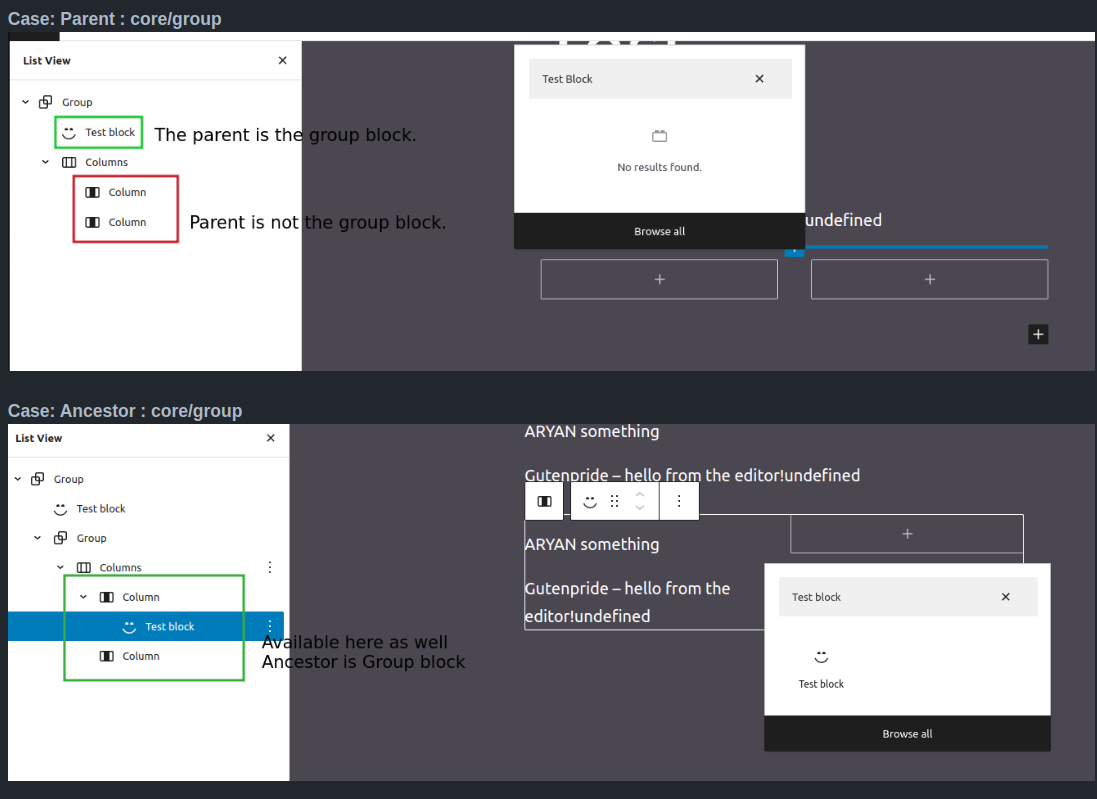
When we register our custom blocks, we can add a condition which would make sure our block can only be added if the parent or ancestor is the specified block. Now let’s check what are parent and ancestor blocks
In parent meta-data value our block would be only available if the parent of our block would be the one specified.
While, in the ancestor meta-data value, our block would be available as a Innerblock as long as the block specified in the ancestor is there at a upper level in the tree.
Now to define this, we have to modify our block.json file and add these
"parent": [ "core/columns" ],"ancestor": [ "core/columns" ],A better visual idea ->