

Block API Reference
Styles
Now there can be instances where we want to modify the style of the default blocks of the gutenberg editor, now to do that we have to add custom classes to the block -> is there any way except editing the source? -> yes -> we can use the styles api to add custom choices for the styles in the block.
We can register the block style like the following way
wp.blocks.registerBlockStyle( 'core/quote', {
    name: 'fancy-quote',
    label: 'Fancy Quote',
} );
Now this would add the Fancy Quote styles option.
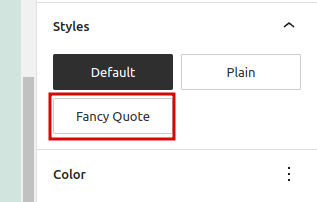
But just adding the style won’t do any good. Why?
The style when selected would just add a custom css class to the element is-style-fancy-quote -> now we can use this class to add custom style by adding the css code.
Block Variations
Now if we have to create some blocks which are similar just some attributes or some content is different in them, instead of creating different blocks we can simply create variations for the created blocks and use them accordingly. A short example of this should be the embed block.
variations: [
		{
			name: 'test1',
			isDefault: true,
			title: __( 'Test 1' ),
			description: __( 'Code is poetry!' ),
			icon: 'smiley',
			attributes: { providerNameSlug: 'wordpress' },
		},
		{
			name: 'test2',
			title: __( 'Test 2' ),
			icon: 'smiley',
			attributes: { providerNameSlug: 'google' },
		},
		{
			name: 'test3',
			title: __( 'Test 3' ),
			icon: 'smiley',
			attributes: { providerNameSlug: 'twitter' },
			keywords: [ __('tweet') ],
		},
	],
This would create three different blocks inside the editor but it will use the same block just changing the attributes.
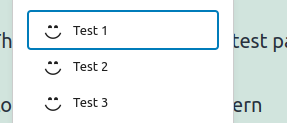
If we look in the markup for these blocks, only the attributes value will be different.
Block context
The block context API allows the parent block to communicate with the child blocks -> We can pass data from parent block to the child blocks in a very simple way.
In the parent file -> when registering the block
registerBlockType( metadata.name, {
	/**
	 * @see ./edit.js
	 */
	edit: Edit,
	attributes: {
		"movie": {
			"type": "number",
			"default": ""
		}
	},
    providesContext: {
        "movie-library/movie": "movie"
    }
} );
In our child block -> when registering the block
registerBlockType( metadata.name, {
	/**
	 * @see ./edit.js
	 */
	edit: Edit,

	/**
	 * @see ./save.js
	 */
	save,

	usesContext: ['movie-library/movie'],
} );
In our edit function it would look something like this
export default function Edit({ context }) {

	console.log( context['movie-library/movie'] );

	return (
		<p { ...useBlockProps() }>
			{ __( 'Movies – hello from the editor!', 'movies' ) }
		</p>
	);
}
Now context[‘movie-library/movie’] this would give us the data we want -> the context.
Block patterns
Block patterns are available in the block inserter panel, they are some predefined content which we can use to create the block data in a single click.
Now to create block patterns we can use the php function register_block_pattern()
register_block_pattern(
		'custom-test/test-pattern',
		array(
			'title'       => __( 'Test pattern', 'custom-test' ),
			'description' => __( 'Test pattern', 'custom-test' ),
			'categories' => array( 'aryan' ),
			'content'     => '<!-- wp:paragraph --><p>This is data for our test pattern</p><!-- /wp:paragraph --><!-- wp:paragraph --><p>This is second data for our test pattern</p><!-- /wp:paragraph -->',
		)
	);
This would register a block pattern named Test Pattern -> which would insert two paragraph blocks with the specified content.